
1. Requirements
B. IMPORT/EXPORT SETTINGS
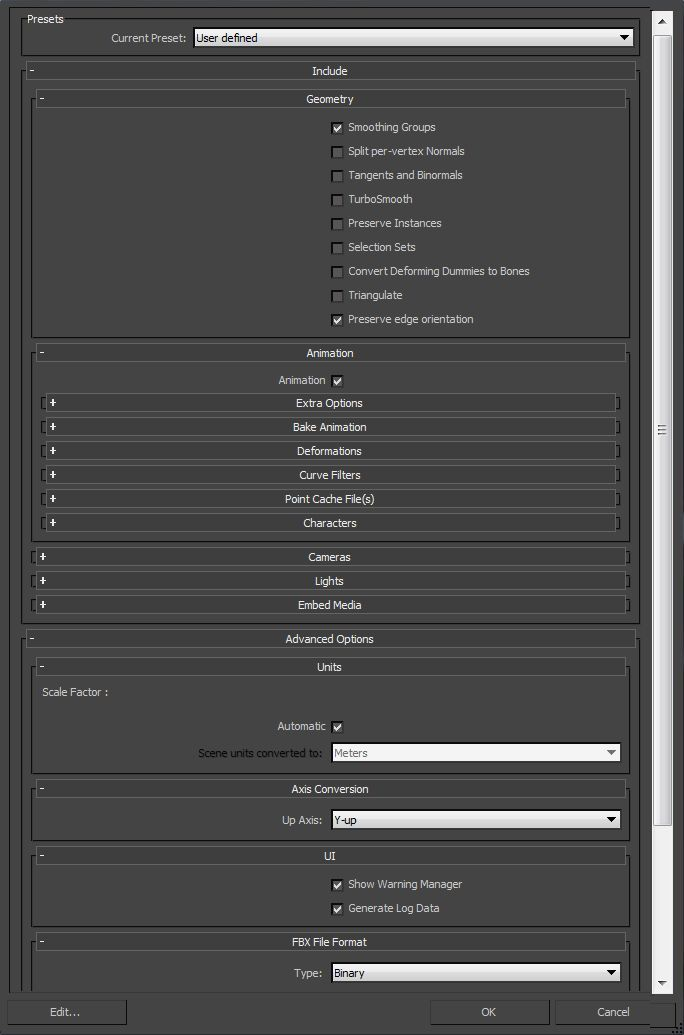
I. We export all files in the format supported by the FBX version up to the 2014/2015 plugin for XSI and 3dsMAX. Avoid using attributes that are not supported by this export format (such as physics constraint or mesh smooth operators etc.) The 2016 plugin is unsupported! II. The FBX data used by the AC engine are following: ● Polygon mesh ● Normals (custom normals are supported) ● Texture coordinate UV (one layer only is read from the AC engine) ● Bones with vertex weight ● Nulls/dummies/nodes ● Hierarchy structure ● Animation data ● Basic mesh transformation (scale, rotation, position) NOTE: The AC engine does not support 2 OBJECTS with the same NAME in the same model. This will cause the game to crash. Make sure that you pay attention to this rule. Of course, when you have multiple LODs in the same scene, you have to use the same names for functional objects and dummies, but there must not be matching names inside the same export (i.e. within LOD A for example). Every mesh MUST have one TEXTURE UV set. The mesh must be (when possible) in quads. Do NOT triangulate the mesh if it is not necessary. For a skinned mesh you can have as many bones as needed, but every single vertex can be influenced by up to 4 bones and not more. During the import process the AC Editor ignores all unnecessary data included in the FBX. Below are the settings to use to correctly export the assets with the 2 supported programmes. Remember to set up your system units before exporting (in XSI it is not required). For 3DS Max the following settings are required:
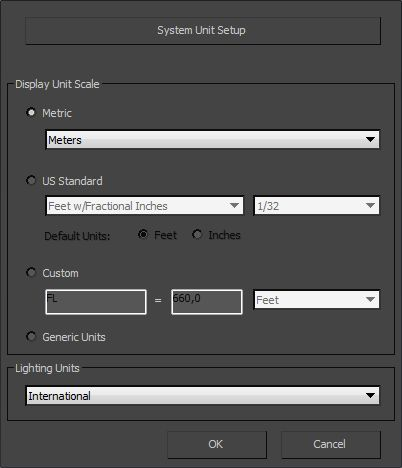
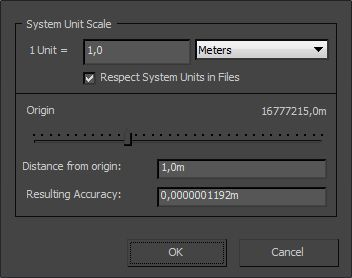
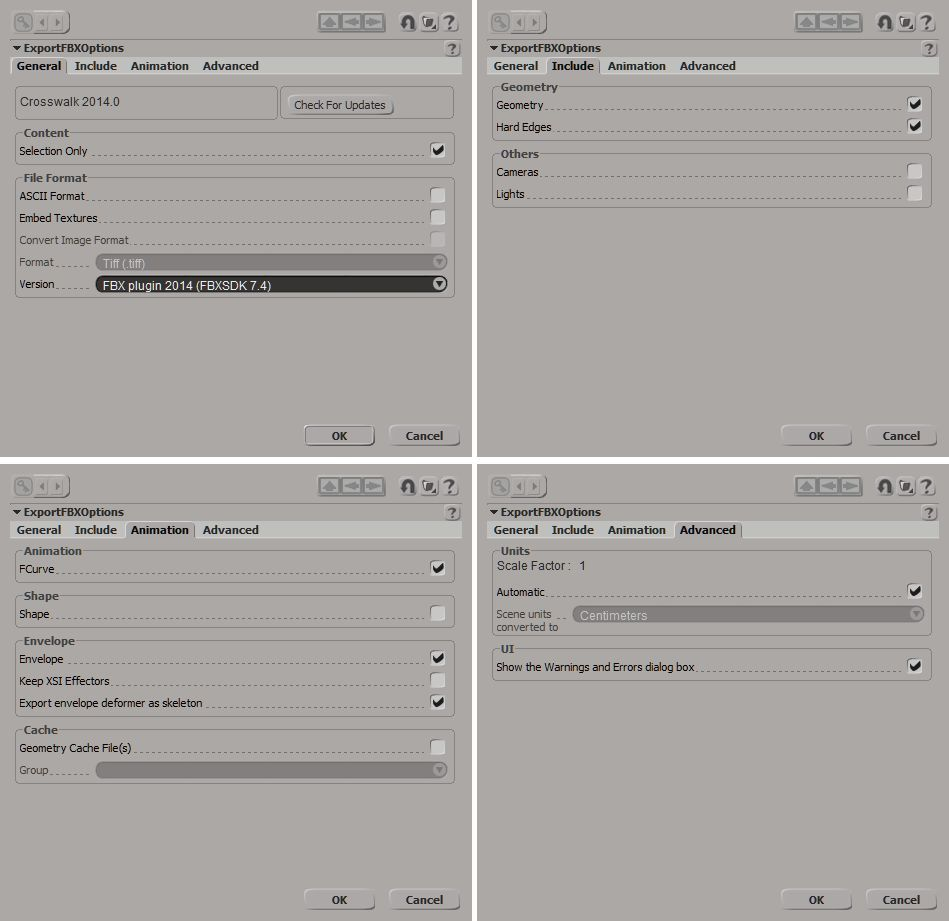
Make sure to set up the system units BEFORE creating the dummies and exporting the car. As a limitation in 3DS Max, if the system unit scale is in mm or cm, even if the dimensions are correct, the dummies of the exported model will still have the wrong scale. If the model and the dummies have been created in the wrong scale, one remedy is to export the model as an .fbx and re-import it in a scene using the correct system unit scaling. NOTE: Make sure that you reset Xform after every modification that affects scale. It is advised not to scale suspension and wheel nulls/dummies. In Autodesk SOFTIMAGE XSI 2014 use the following settings:
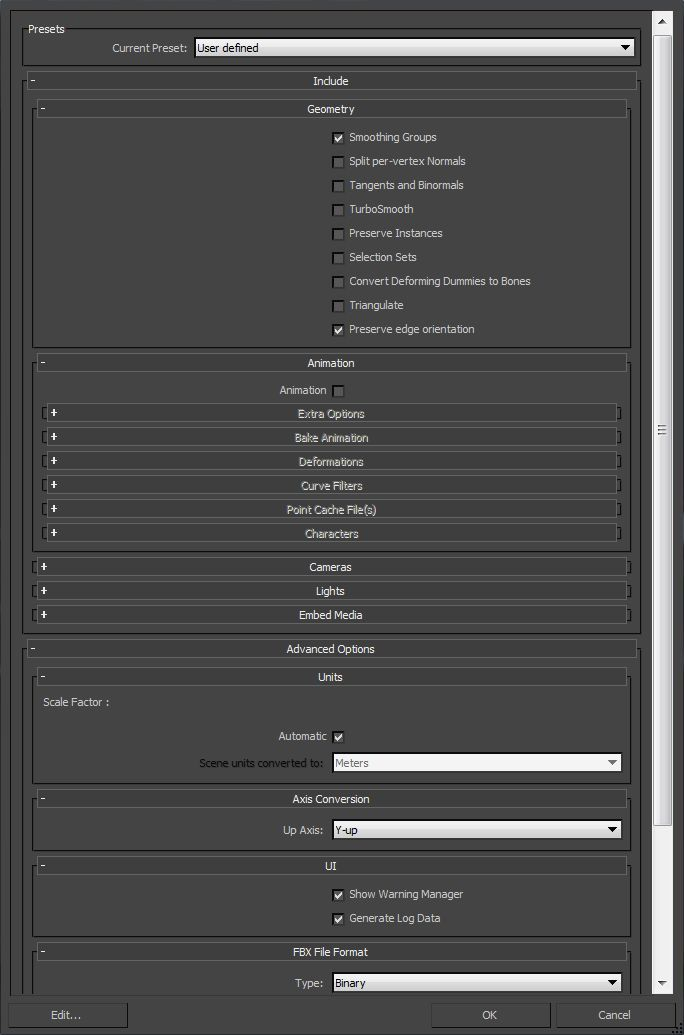
In Autodesk 3DS MAX 2013 use the following export settings: a) to export the base asset with no animation b) to export animated nulls/dummies:
Important: The mesh must be scaled 1:1, rotation must be frozen on the mesh (reset Xform in 3DS Max) and objects should not have animated transformations. Only the dummies/nulls may have different transformations. When they are animated they can be rotated and scaled, and some of them can act as bones for the skinned mesh.